Version 3, November 2026. The website changes now and then, so the pictures here may differ a little from what you see. The words on the buttons stay the same.
1. Signing in
The site is for members only. You sign in with a Google account, the same way you would for Gmail.
Open cohort.hexisprotocol.org/mystics in your web browser.
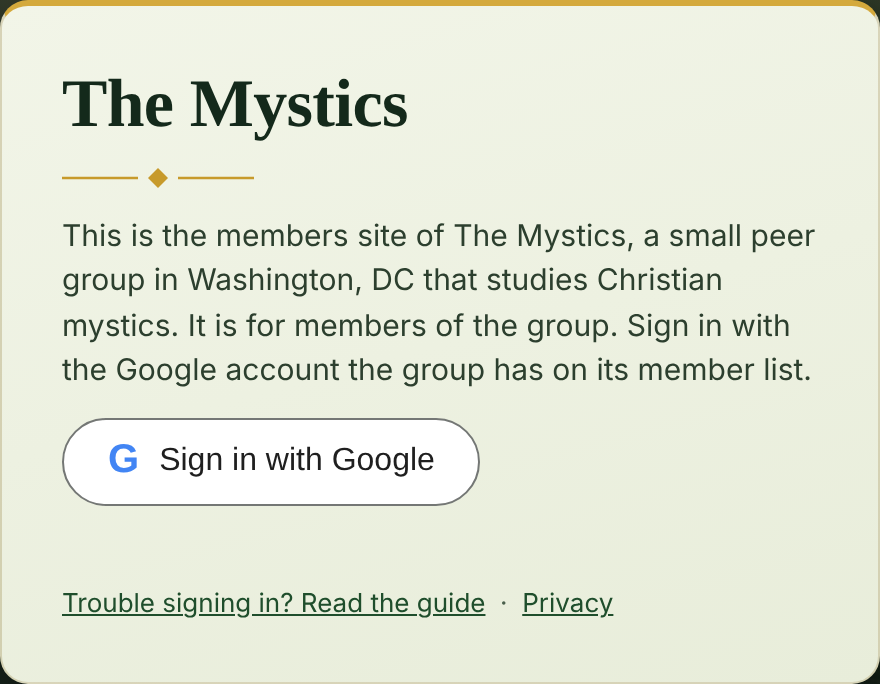
Press the button that says Sign in with Google.
Choose the Google account you gave the group. If it asks for a password, type it.
The sign-in card. Press the button marked 1.
You stay signed in for about five hours. If the page says your sign-in has expired, press the button again. Nothing is lost.
If sign-in does not work
It says your address is not on the Members list.You may have chosen a different Google account from the one you gave us. Try again with the right one, or tell the group which address you use.
There is no button, or it says Google sign-in could not load.Try another browser (Chrome, Safari or Edge). Privacy tools and ad blockers can hide the button; turn them off for this site.
You do not have a Google account.Ask the group. Making one takes about ten minutes, and we can sit with you.
2. The next gathering
See when and where we meet, and tell us if you are coming. It helps the host plan.
Signed in, press Gatherings at the top of the page. (Or press the first big square on Start here.)
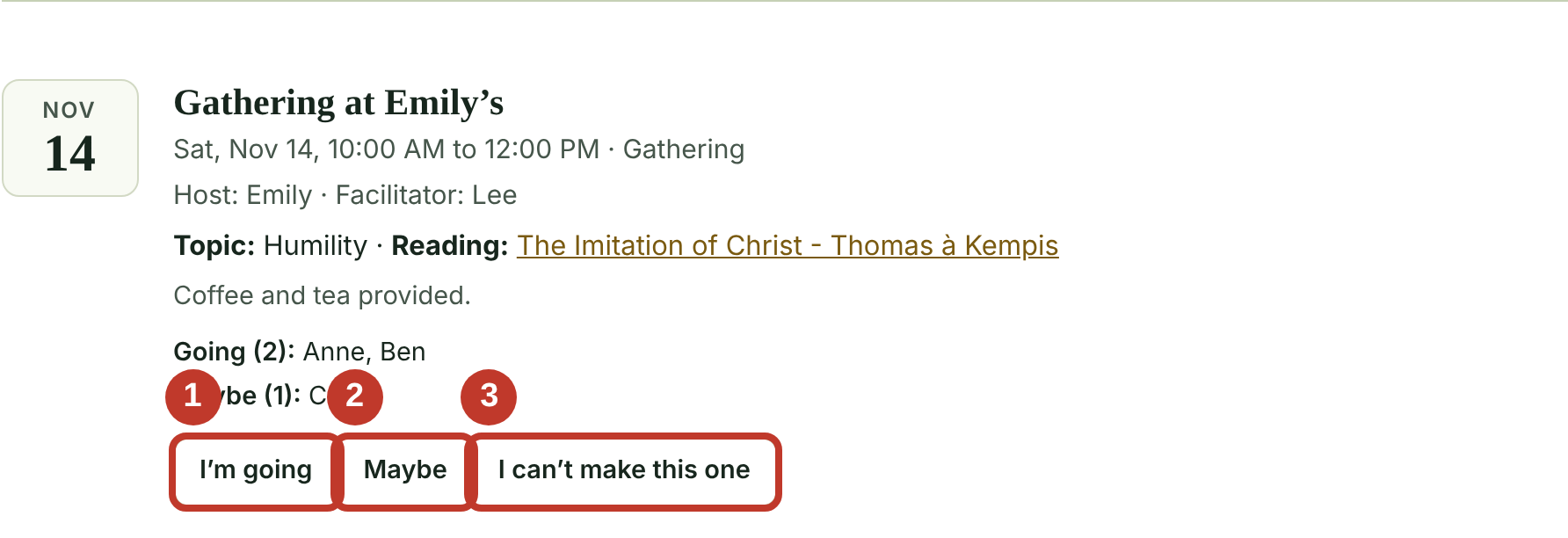
Find the gathering. It shows the date, the place, the host, the topic and the reading. Open Details, if you see it, for what to read or bring.
Press one of the three buttons under it: I'm going, Maybe, or I can't make this one. The word Saved appears.
1 is I'm going, 2 is Maybe, 3 is I can't make this one.
Changed your mind? Press a different button. To remove your answer, press the same button again.
Near the top of the page, Add to Google Calendar and Apple or Outlook put every gathering on your own calendar.
3. Suggesting a gathering
Hosting something informal, or know of an event the group might enjoy? Suggest it here. An administrator looks at it first, so it may take a day or two to appear.
Press Gatherings at the top of the page, then Suggest a gathering.
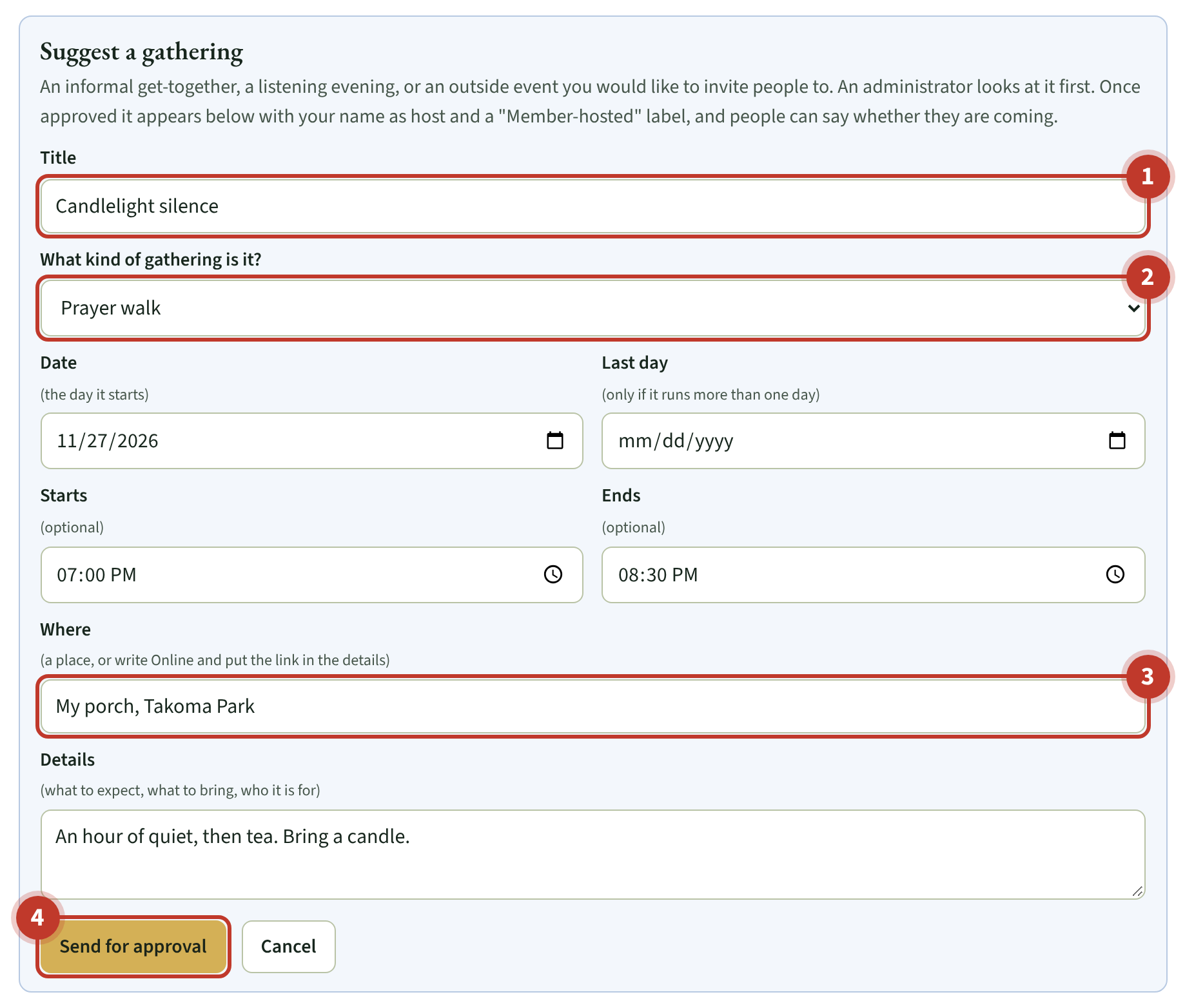
Fill in the Title, choose the kind of gathering, then the Date and Where. The times and details are optional. If it is on Zoom, write Online under Where and put the link in the details.
Press Send for approval.
1 is the title. 2 is the kind of gathering. 3 is the place. 4 sends it.
While it waits, it is listed under Your suggestions at the top of the page, and only you can see it. Press Withdraw to take it back. Once approved it joins the list with a blue Member-hosted label and your name as host, and everyone can say whether they are coming.
If it does not work
It says the date has already passed.Choose today or a later day.
It says Not added.An administrator chose not to add it, and may have left a note. Ask the group if you would like to talk it over.
4. Reading a text
The library holds books in the public domain. You can read them here or print them.
Press Library at the top of the page.
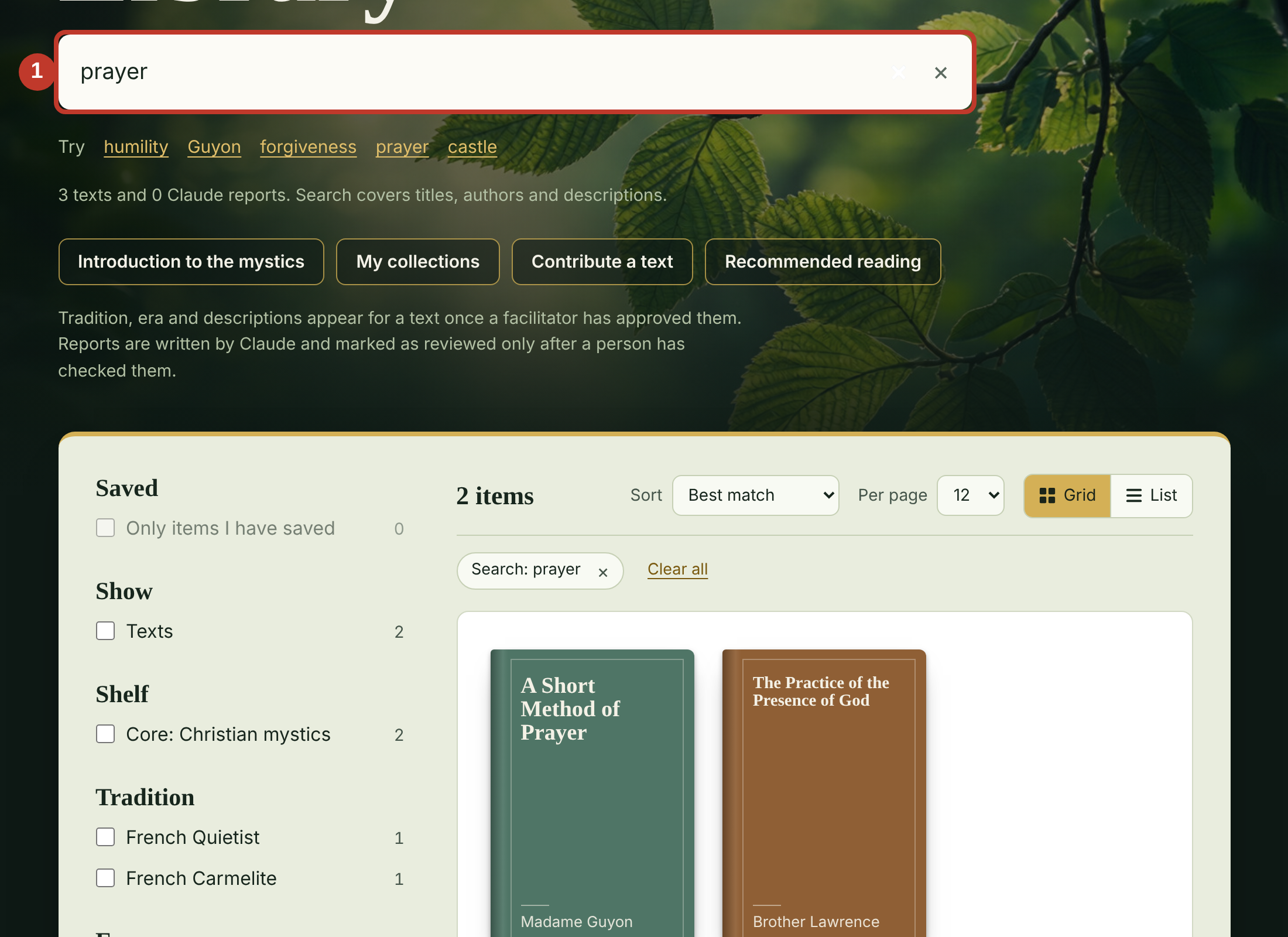
Type a name or word in the search box, such as prayer or Julian. Press the Return key.
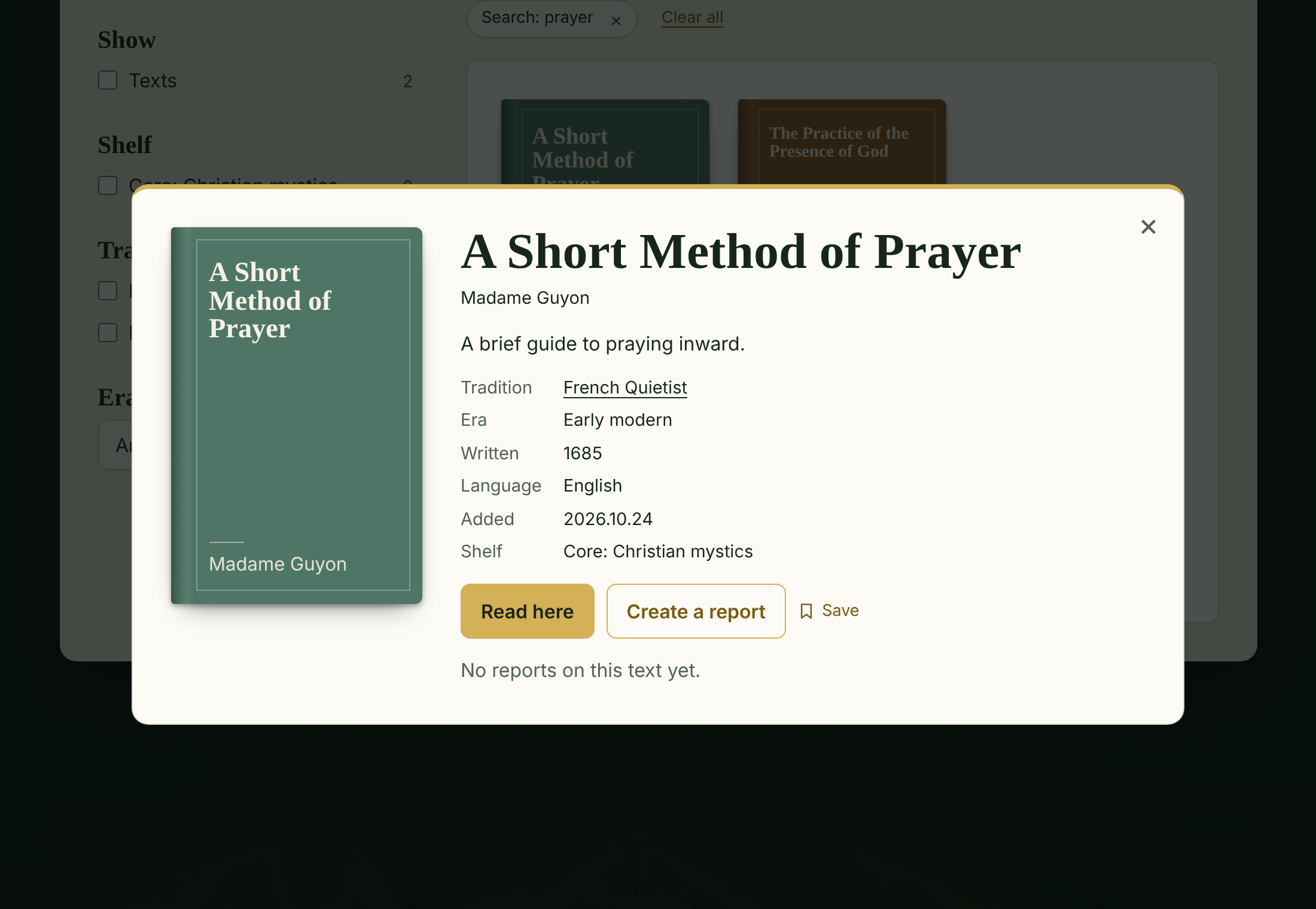
Press the title of the book you want. A window opens with details.
Press the gold button Read here.
1 is the search box. 2 is a book title: press it.1The details window. Press the gold button, Read here.
Once you are reading
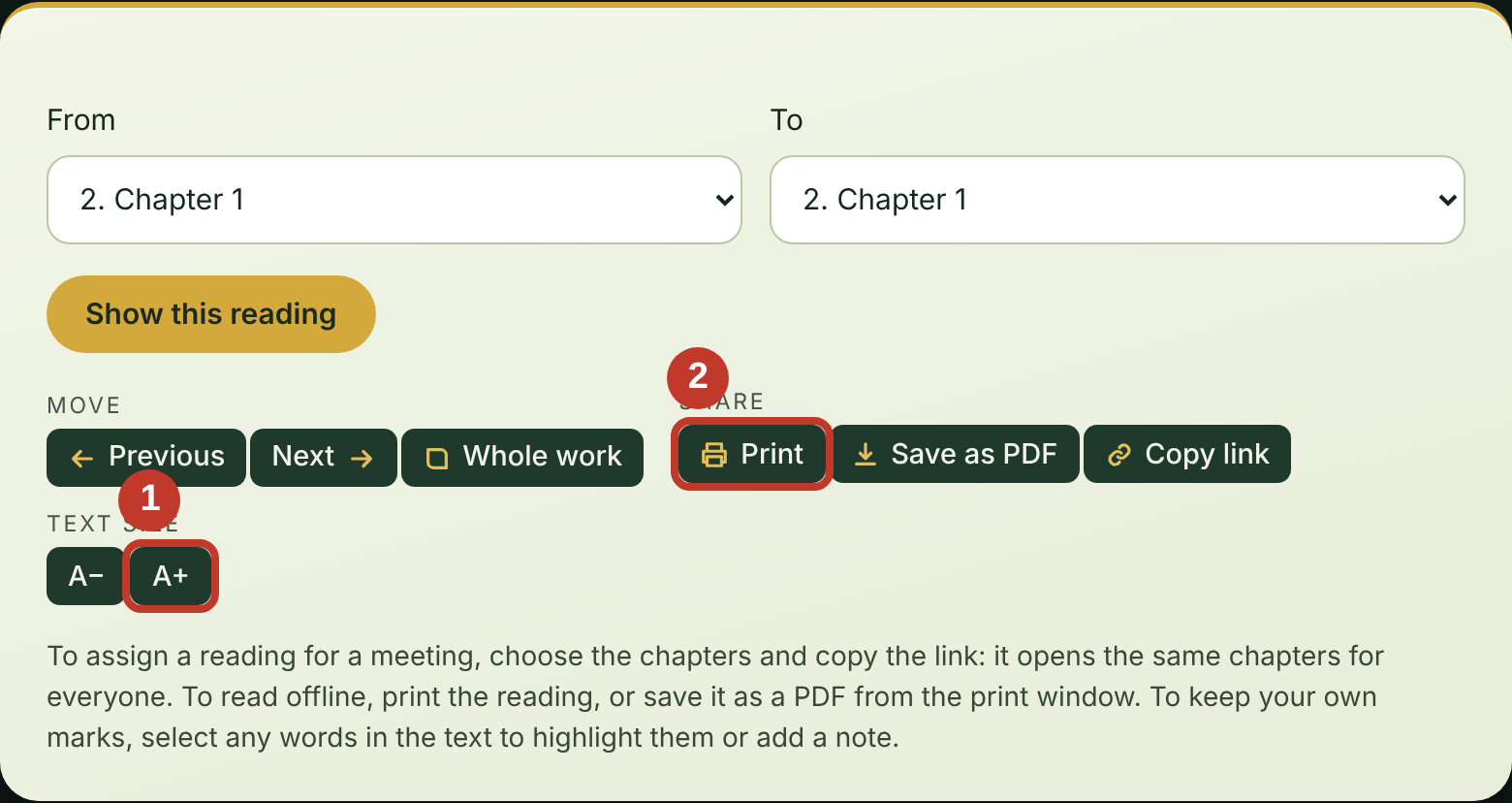
1 makes the text larger. 2 prints what you are reading.
Previous and NextMove one chapter back or forward.
Whole workShows the entire book on one long page.
Copy linkCopies the address of exactly this reading, so you can send it to a friend.
5. Recommending a book
Know a book the group should read, one that is still under copyright? Add it to the shelf. We cannot hold its text, but we can show the cover and a link to buy it.
On the book's Amazon page, press Share and choose Copy link. (On a phone, the link is copied to the clipboard.)
Come back to the site. Press Start here, then Recommend a book.
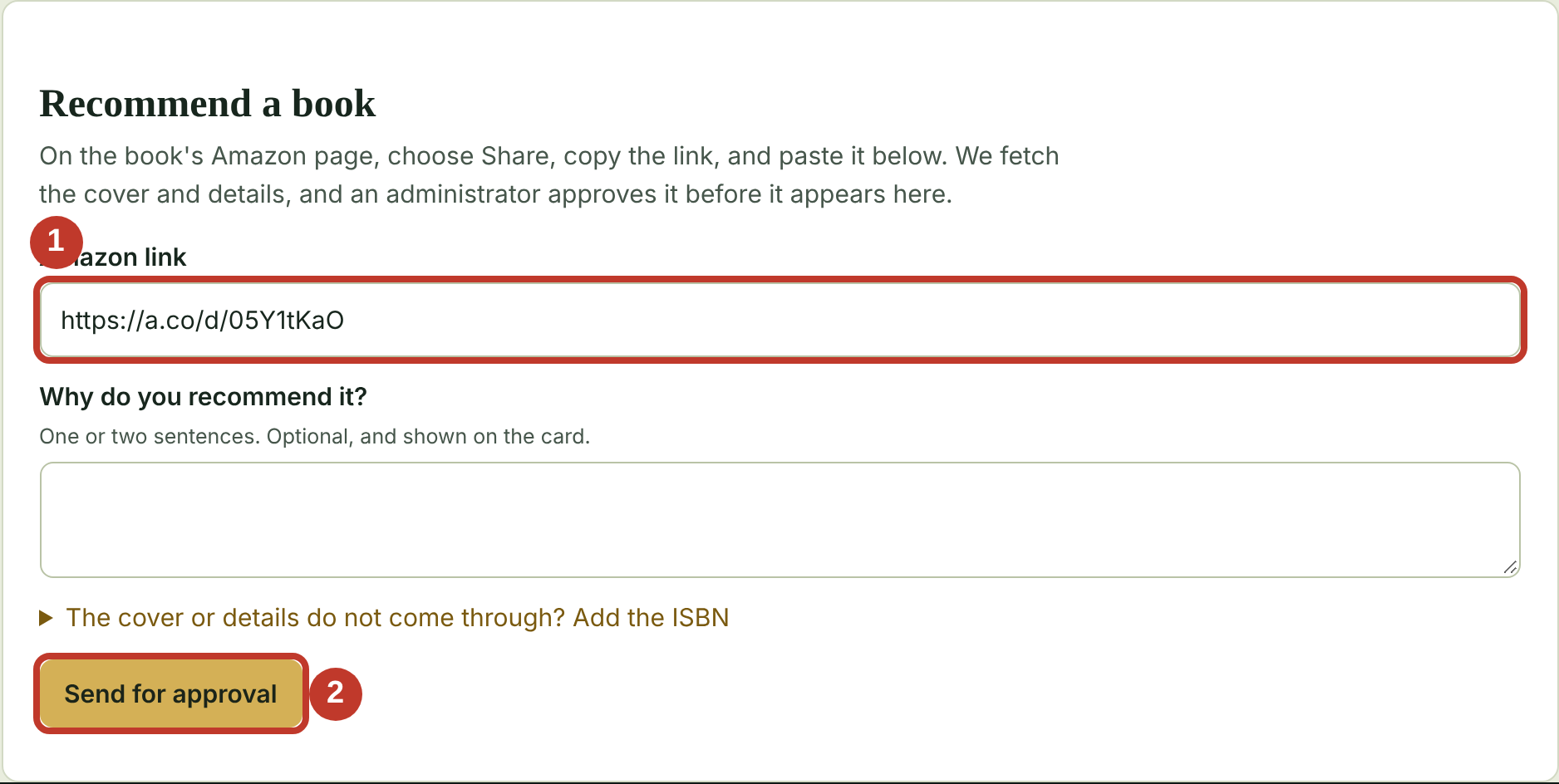
Click in the box marked Amazon link and paste. On a computer, hold Ctrl and press V (on a Mac, Command and V). On a phone, press and hold in the box and choose Paste.
If you like, write a sentence or two on why you recommend it.
Press Send for approval.
1 is where the link goes. 2 sends it.
Your book is not on the shelf at once. An administrator checks it first. Until then you will see it listed as waiting for approval.
6. Listening and watching
Members share videos, songs and podcasts here: a favorite playlist, a talk on a mystic, a recording from a gathering. You can play them and save the ones you like. Nothing is copied to the site. To add your own, see the next page.
To play something
Press Library at the top of the page, then Listen and watch.
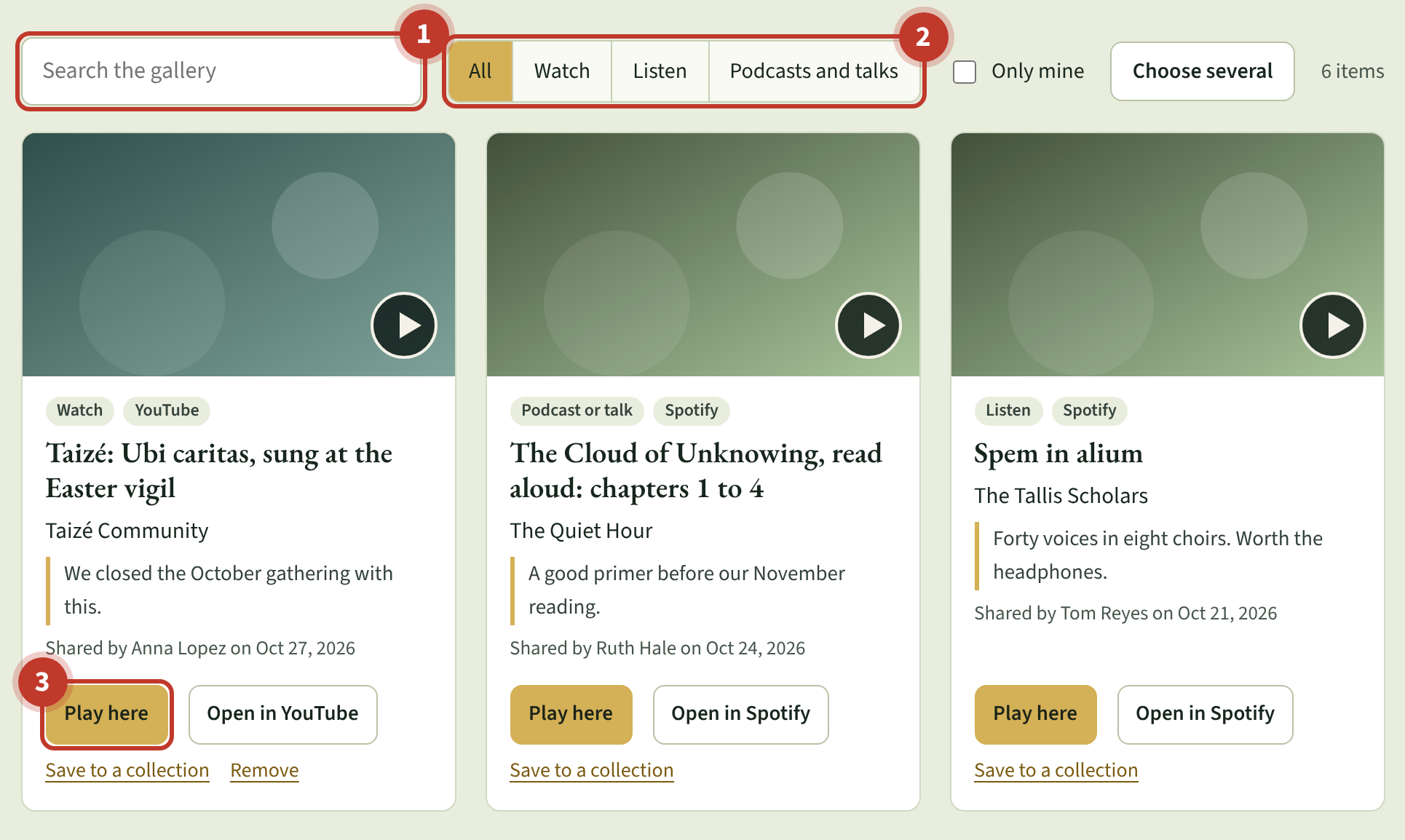
Look through the cards, or type a word in the search box. The buttons next to it narrow the list to Watch, Listen or Podcasts and talks.
Press Play here. A window opens with the player. Press the × in its corner to close it and stop the sound.
1 is the search box. 2 narrows the list by kind. 3 plays it in a window.
No Play here button? The card says Open in and an app name instead. It opens the original in a new tab; close that tab to come back.
To save something to a collection
Press Save to a collection under the item.
Choose one of your collections from the list, or type a name for a new one.
Press Save. Your collections are under Collections in the bottom right corner, and only you can see them.
Saving several at once: press Choose several near the top, tick the cards you want, then press Save to a collection in the dark bar at the bottom.
7. Sharing something you found
Found a video, song or podcast the group would enjoy? Add it in about a minute. It appears for everyone at once, with your name on it.
In the app or on the website where you found it, press Share and choose Copy link.
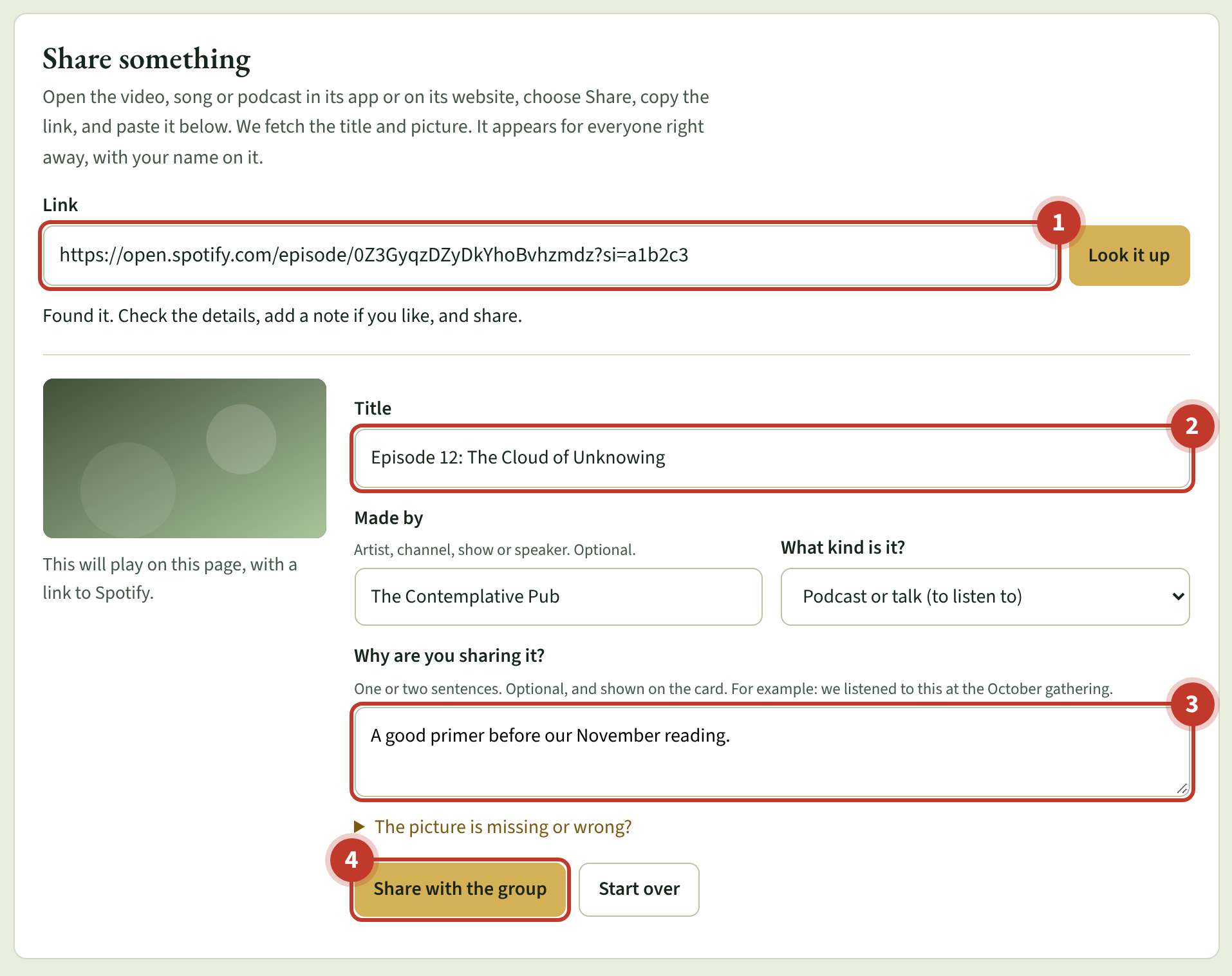
Come back to Listen and watch. Click in the box marked Link and paste, the same way as in section 5. The site looks it up by itself. If it does not, press Look it up.
Check the Title and Made by. If What kind is it? is blank, choose one.
If you like, say why you are sharing it. For example: we heard this at the October gathering.
Press Share with the group. It appears at once, with your name on it.
1 is where the link goes. 2 is the title: correct it if it is wrong. 3 is your note. 4 shares it.
Made a mistake? Press Remove under your own item. Only you, or an administrator, can remove it. Sharing from Amazon Music? Amazon does not pass on titles, so type the title and the artist yourself.
If it does not work
The window is blank, or the player does not appear.Press Open in at the bottom of the window. It takes you to the original.
It says it is already in the gallery, or not available.Someone shared it first (search its title), or it is private or taken down. If only the title is blank, type it yourself.
8. Making things bigger
If the writing is hard to read, you can make it larger. These do not change anything for anyone else.
On any page of the site, look at the bottom right corner. Press Larger text. Press Normal text to go back.
While reading a text, press A+ to make the text bigger still. A− makes it smaller.
On any website, your browser can also zoom. On a computer, hold Ctrl (Mac: Command) and press the + key. On a phone or tablet, spread two fingers apart on the screen.
Prefer paper? Open any reading and press Print. The page prints in a clear layout with no buttons.
9. If something goes wrong
Almost everything here is fixed by one of these.
A page is blank or says Loading for a long time.Wait ten seconds, then reload the page (the round arrow at the top of the browser).
The site asks you to sign in again.It does this after about five hours. Press the Google button once more.
You pressed something and nothing happened.Look for a small message near the button, such as Saved or a line in red. It says what to do.
You are lost.Press Help at the top of any page to open this guide, or Start here in the bottom corner to go back to the main squares.
Nothing works.Close the browser, open it again, and go to the address on the front of this guide.
Something is broken, or looks wrong.Press Report a problem in the bar at the bottom of the page, say what you pressed and what happened, and press Send. It goes to the administrators.
Still stuck?
Ask a member of the group. Most of us are happy to sit with you for ten minutes, in person or by phone. Write the name of your helper here:
Their phone or email:
The Mystics website, on one page
Address: cohort.hexisprotocol.org/mystics
Sign in: press Sign in with Google.
Next gathering: press Gatherings, then I'm going, Maybe or I can't make this one.
Read: press Library, search, press a title, press Read here.
Suggest a gathering: press Gatherings, then Suggest a gathering. An administrator approves it.
Listen and watch: press Library, then Listen and watch. To share, copy the link, paste it, press Share with the group.
Recommend a book: copy the link from Amazon, press Start here, then Recommend a book, paste, press Send for approval.
Bigger text: Larger text, bottom right corner.
Lost? Press Start here, bottom right corner.
My helper:
The Mystics, a peer circle in Washington, DC. This guide is also available on the website under Help.